10 Tips for Choosing an Industrial Personal Computer?
Choosing an Industrial Personal Computer is not a simple comparison of processor speed, memory, and price. The right unit must survive heat, vibration, dust, electrical noise, and long production cycles. A factory floor is not a quiet office. Fans collect dust, connectors loosen, and temperatures change quickly.
John Rinaldi, an industrial networking expert and author, has emphasized, “The network is the nervous system of the industrial enterprise.” His point applies directly to Industrial Personal Computer selection. A reliable computer must communicate steadily with PLCs, sensors, cameras, SCADA platforms, and plant networks. Even a powerful system becomes a weak investment when its ports, protocols, or operating system lack long-term support.
This guide introduces ten practical tips for evaluating an Industrial Personal Computer. It considers processing demands, fanless cooling, enclosure protection, mounting options, display connections, storage reliability, cybersecurity, and lifecycle support. Look for evidence, not attractive claims. Check operating temperature ratings. Review EMC test information. Confirm whether the supplier offers replacement parts and firmware updates.
Small details matter.
A sealed enclosure may reduce dust problems, but it can also trap heat. More memory may improve multitasking, yet it cannot repair poor software design. I have seen equipment selected for impressive specifications and later limited by unsuitable connectors. That mistake is easy to make.
No checklist is perfect. Your environment may expose risks that laboratory testing misses. Therefore, assess the installation site, document real workloads, and request sample testing before approving a large deployment. The safest choice is rarely the cheapest model. It is the computer that remains predictable when production conditions become difficult.
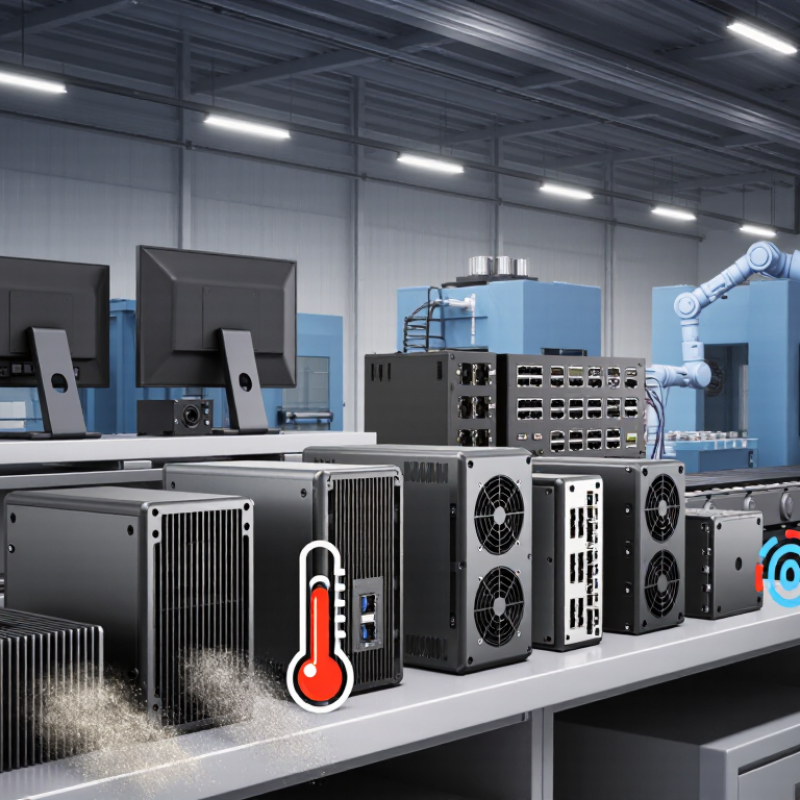
Define the Industrial Environment and Required Computer Role
10 Tips for Choosing an Industrial Personal Computer?
Define the Industrial Environment and Required Computer Role
An industrial computer should be selected from the worksite outward, not from a product catalogue. Start with the floor. Is it dusty, wet, vibrating, or exposed to oil mist? Record temperature changes across a full shift, including cold starts and heat near motors. Note cleaning methods, airborne particles, electrical noise, and available enclosure space. These details often matter more than processor speed.
Then define the computer’s actual role. A panel PC may display production data, while an edge controller may collect sensor signals and make local decisions. A vision station needs stable image processing and carefully matched interfaces. A machine operator terminal needs readable controls, quick recovery, and dependable touch input. List every connected device, protocol, screen, storage requirement, and response time. Leave room for future sensors. Replacing a computer during production is rarely simple.
I have seen teams over-specify memory while overlooking connector security and airflow. It looked powerful on paper. It failed beside a dusty conveyor. That mistake is worth documenting, not hiding. Use measured environmental data instead of guesses, and verify ratings through installation records and test reports. Check whether maintenance staff can replace storage, clean filters, and restore software without special tools. Ask a technician to review the plan. Their practical objections may expose assumptions that a spreadsheet misses. Then test a representative unit under realistic heat, vibration, network load, and restart conditions before approving a wider deployment.
10 Tips for Choosing an Industrial Personal Computer: Define the Industrial Environment and Required Computer Role
Start by matching the computer enclosure to the site conditions. Under IEC 60529, higher IP digits indicate stronger protection against dust and water. IP54 provides limited dust protection and protection from water splashes, IP65 is dust-tight and protected against water jets, while IP67 is dust-tight and protected against temporary immersion.
Match Processing Power, Memory, and Storage to Workloads
Choosing an industrial personal computer starts with the workload, not a fashionable processor. A vision cell may inspect 12 images per second, while a data logger mainly records temperatures and machine states. Estimate input volume, response time, and software concurrency before selecting the CPU. IDC’s Worldwide Edge Spending Guide forecasts global edge spending at 232 billion dollars in 2024, exceeding 350 billion dollars by 2027. More edge workloads will demand local processing.
Match processor cores to real tasks. High-frequency cores suit fast control responses. More cores help with analytics, virtual machines, and several camera streams. Memory needs equal the operating system, applications, buffers, and future updates. Leave practical headroom. An installation with 16 GB may run smoothly today, then struggle after adding inspection software. Measure twice.
Storage also needs workload-based planning. Choose capacity from daily data volume, retention rules, and recovery copies. A camera system can generate hundreds of gigabytes weekly. Sequential recording favors different storage behavior than random database writes. Check endurance ratings, temperature limits, and power-loss protection. The 2024 Deloitte Smart Manufacturing Survey reported that 86% of manufacturers view smart manufacturing as important to competitiveness. That ambition can expose weak storage planning quickly. I have seen teams overbuy CPU performance while underestimating write cycles. Recheck the numbers using a simulated peak shift, not a quiet bench test.
Evaluate Durability Against Heat, Dust, Moisture, and Vibration
10 Tips for Choosing an Industrial Personal Computer
Evaluate Durability Against Heat, Dust, Moisture, and Vibration
A factory computer faces conditions that office systems rarely survive. Before purchasing, check its rated operating temperature, not only its storage temperature. A cabinet near a furnace may reach 55°C during afternoon production. That heat can shorten component life and cause unexpected throttling. Active cooling helps, but fans can pull dust inside. Fanless designs reduce moving parts, although they still need a clear path for heat dissipation. Measure the cabinet temperature yourself when possible. Datasheets do not know your floor.
Dust protection requires more than a sealed-looking case. Review the enclosure’s certified ingress rating and inspect how cables enter the system. Fine powder can settle around connectors and gradually block airflow. Moisture creates a different risk. Condensation may appear when a cold computer enters a warm, humid room. Proper drainage, conformal protection, and controlled cabinet heating can reduce this problem. Avoid assuming water resistance equals safe operation during constant humidity.
Vibration deserves a practical test. A computer mounted beside a motor may experience continuous shaking, not one dramatic impact. Use secure mounting, locking connectors, and storage designed for vibration. Check published vibration and shock test methods, because figures without test conditions can mislead. I once treated a stable workbench as representative and underestimated machine vibration. That was a poor assumption. Run the computer during normal production, monitor temperatures, and inspect connectors after several weeks. Reliability is measured in the environment, not just in a specification sheet.